I bought the touchscreen mouse expecting a leap forward—something sleek, intuitive, and futuristic. What I got was a chore to use, a battery vampire, and a constant source of frustration. It wasn’t just disappointing. It was over-engineered to the point of being counterproductive.
The promise? A mouse with a built-in touchscreen that lets you launch apps, adjust settings, or scroll through timelines without touching your keyboard. The reality? A slippery learning curve, accidental inputs, and a device that fights your muscle memory at every turn.
This isn’t just a bad gadget. It’s a textbook case of innovation for innovation’s sake—adding complexity without solving an actual user problem.
Let’s break down why this touchscreen mouse failed where simpler designs succeed.
Why Touchscreen Mice Break Basic UX Principles
User experience relies on predictability, consistency, and tactile feedback. A traditional mouse gives you physical buttons, a scroll wheel with resistance, and a shape that fits your hand. These aren’t arbitrary. They’re the result of decades of ergonomic research and muscle memory refinement.
The touchscreen mouse throws that out the window.
Instead of a scroll wheel, you swipe on a glass surface. Instead of a side button, you tap a zone on the screen. And because that screen is flush with the mouse body, your palm brushes it constantly—triggering unintended actions.
Real example: I was editing a video timeline in Adobe Premiere when my palm accidentally swiped left on the touchscreen. The timeline jumped 15 seconds back. Not only did I lose my place, but undo shortcuts didn’t catch the gesture. I had to manually seek back, disrupting my rhythm.
Touch surfaces on a mouse have no physical boundaries. No clicks. No texture. Nothing to tell your hand, “This is a button.” You end up looking at the mouse more than your screen—defeating the purpose of a peripheral meant to enhance speed and precision.
The Battery Drain No One Warned Me About Most high-end wireless mice last weeks between charges. Some even last months. The Logitech MX Master 3S, for example, runs up to 70 days on a full charge.
This touchscreen mouse? Lasts three days with moderate use.
Why? That bright little display is always on. It doesn’t sleep fast enough. It wakes when you move the mouse slightly—like when adjusting your wrist. And every time it wakes, it draws power.
I kept it plugged in after the first week. Not because I needed to, but because I couldn’t trust it not to die mid-meeting or during a critical workflow.

Compare that to a standard mouse: - No screen = less power draw - Passive sleep modes = longer battery life - Predictable charging cycles
Adding a screen to a mouse isn’t just a feature—it’s a power liability. And when your peripheral needs daily charging, it stops being a tool and starts being a chore.
Gestures That Don’t Stick—and Never Should
The manufacturer included a software suite to customize touchscreen gestures: swipe up for volume, swipe down for brightness, tap zones for app shortcuts.
Sounds great on paper.
In practice, the gestures are inconsistent. The swipe detection is too sensitive or not sensitive enough. And because the touchscreen doesn’t vibrate or click, you never know if your gesture registered.
I set up a three-finger swipe to switch desktops. Half the time, it worked. The other half, it either did nothing or triggered a two-finger scroll instead.
Worse: muscle memory fights back. After years of using Ctrl+Tab to switch tabs, I don’t want to lift my hand to swipe on a mouse. I want efficiency, not novelty.
Common mistake: Users assume gesture-based input is faster. But studies show that unless the gesture is deeply integrated into the OS and universally consistent (like pinch-to-zoom on phones), it adds cognitive load.
You’re not saving time. You’re training yourself to fail.
Where This Mouse Almost Works—And Why It Still Falls Short
There are niche cases where a touchscreen mouse could make sense.
Video Editors A touch surface could let you scrub timelines or adjust color curves directly from the mouse. But existing tools already do this better: Wacom tablets, Loupedeck consoles, or even keyboard shortcuts with modifier keys.
The touchscreen mouse lacks pressure sensitivity and precision. You can’t make fine adjustments. And since it’s on the mouse, you’re forced to move your hand off the keyboard—breaking your workflow.
3D Artists Modeling in Blender or Maya requires frequent tool switching. A touchscreen might let you access radial menus. But again, dedicated input devices (like the 3Dconnexion SpaceMouse) offer rotation, pan, and zoom with analog control—something a flat screen can’t replicate.
Programmers Some developers wanted touchscreen shortcuts for terminal commands or IDE actions. But most coders rely on muscle memory and keyboard macros. A touchscreen adds visual distraction and hand movement.
Even in these use cases, the touchscreen mouse fails because it doesn’t specialize. It tries to be everything and ends up being useful for nothing.
The Hidden Cost of “Smart” Peripherals
We’re in an era of “smart everything.” Smart lights, smart fridges, smart speakers—and now, smart mice.
But intelligence in hardware only matters if it’s invisible and reliable. The best tech fades into the background.
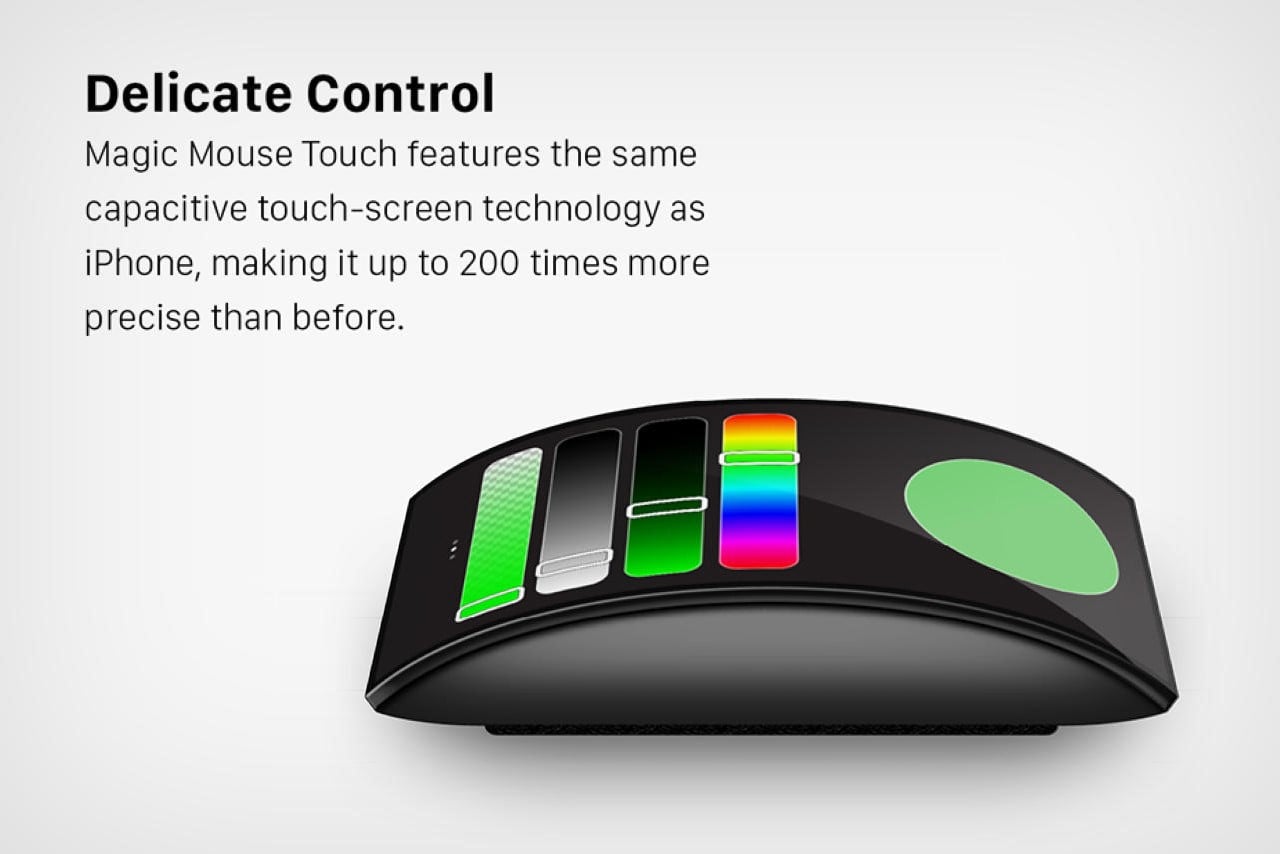
This touchscreen mouse does the opposite. It demands attention. It needs apps. It requires updates. It tracks usage data. It syncs with the cloud.
All for what? A few customizable gestures you’ll forget in a week?
Compare it to the Apple Magic Mouse, which also has a touch surface. Even that device gets criticized for being too sensitive and lacking buttons. But at least it’s simple—no app required, no extra features, no touch zones to configure.
The problem with over-engineered mice isn’t the tech. It’s the assumption that users want more control surfaces on their mouse.
We don’t.
We want reliability. Speed. Comfort. The fewer things we have to think about, the better.
Five Better Alternatives to the Touchscreen Mouse
If you’re looking for enhanced control without the gimmicks, here are five real tools that deliver:
| Product | Best For | Key Advantage |
|---|---|---|
| Logitech MX Master 3S | Professionals, multitaskers | Ergonomic shape, precise scroll, long battery |
| Apple Magic Mouse 2 | Mac users, minimalist setups | Multi-touch gesture support (without a screen) |
| Razer Basilisk V3 | Gamers | 11 programmable buttons, responsive sensor |
| Corsair Scimitar RGB Pro | MMO players | Adjustable side keypad for macros |
| Wacom Intuos Pro + Pen | Designers, artists | Pressure-sensitive input, natural workflow |
None of these have built-in screens. All are faster, more reliable, and easier to use than any touchscreen mouse on the market.
If you need gesture support, pair one of these with a touchpad (like the Apple Magic Trackpad or Microsoft Precision Touchpad) and keep input methods separate.
The Verdict: Innovation Should Solve Problems, Not Create Them
This touchscreen mouse isn’t broken. It’s misdirected.
It takes a perfectly functional tool—the mouse—and layers on features that complicate, not enhance. It ignores core ergonomic principles, drains battery unnecessarily, and introduces failure points where none existed.
Good design isn’t about adding features. It’s about removing friction.
The mouse was already optimized over decades. We don’t need to reinvent it with touchscreens, apps, and cloud sync. We need tools that work silently, consistently, and intuitively.
If you’re tempted by the novelty, ask yourself: - Do I really need on-mouse app shortcuts? - Will this improve my speed or accuracy? - Am I solving a problem, or just chasing a gimmick?
For most people, the answer is no.
Final Thoughts: Stick to Simplicity
I returned the touchscreen mouse after three weeks. Not because it was defective—but because it made my work harder.
Technology should serve the user, not the other way around.
If you’re looking for better control, go for a mouse with well-placed physical buttons, solid build quality, and proven performance. Skip the screen. Skip the gestures. Skip the over-engineering.
Sometimes, the most advanced tool is the one that feels invisible.
Choose tools that disappear into your workflow—not ones that demand constant attention.
Frequently Asked Questions
Why are touchscreen mice not popular? Because they add complexity without solving real user problems. Physical buttons and scroll wheels are more reliable and tactile.
Can you customize a touchscreen mouse? Yes, most come with software to assign gestures or shortcuts, but customization often leads to inconsistency and accidental inputs.
Do touchscreen mice work with all operating systems? Most are limited to Windows and macOS, with reduced functionality on Linux or older OS versions.
Are touchscreen mice good for gaming? No. The lack of physical feedback, gesture lag, and risk of accidental inputs make them unsuitable for fast-paced gaming.
What’s wrong with having more controls on a mouse? Too many controls increase cognitive load and error rates. Simplicity often leads to better performance.
Do touchscreen mice last as long as regular mice? No. The screen and additional electronics drain the battery faster and introduce more points of failure.
Is there any use case where a touchscreen mouse makes sense? Possibly for specialized workflows like video editing or 3D design, but even then, dedicated peripherals perform better.
FAQ
What should you look for in This Touchscreen Mouse Is My Over-Engineering Nightmare? Focus on relevance, practical value, and how well the solution matches real user intent.
Is This Touchscreen Mouse Is My Over-Engineering Nightmare suitable for beginners? That depends on the workflow, but a clear step-by-step approach usually makes it easier to start.
How do you compare options around
This Touchscreen Mouse Is My Over-Engineering Nightmare? Compare features, trust signals, limitations, pricing, and ease of implementation.
What mistakes should you avoid? Avoid generic choices, weak validation, and decisions based only on marketing claims.
What is the next best step? Shortlist the most relevant options, validate them quickly, and refine from real-world results.